We've all done it — hit Send and then immediately spotted the missing attachment, the wrong meeting time, or a message sent to the wrong person entirely. Outlook has a built-in way to try to undo that mistake: Message Recall.
This guide covers exactly how recall works in 2026, the requirements you need to meet for it to actually succeed, and the steps for every version of Outlook — classic desktop, the new Outlook app, Outlook on the web, and mobile.
Have you ever clicked send on a message and then remembered that you forgot to attach that important file, or realized you put the wrong time down for a meeting? Outlook allows you the option of recalling a sent message.
This feature requires you to use a Microsoft Exchange Server 2000, Exchange Server 2003, or Exchange Server 2007 account. Most home and personal accounts do not use Microsoft Exchange. For more information about Microsoft Exchange accounts and how to determine which version of Exchange your account connects to, see the links in the See Also section.The recipient of the e-mail message that you want to recall must also be using an Exchange account. You cannot recall a message sent, for example, to someone's personal Internet service provider (ISP) (ISP: A business that provides access to the Internet for such things as electronic mail, chat rooms, or use of the World Wide Web. Some ISPs are multinational, offering access in many locations, while others are limited to a specific region.) POP3 (POP3: A common protocol that is used to retrieve e-mail messages from an Internet e-mail server.) e-mail account.
E-mail is a fast way to communicate with your co-workers, schedule meetings, and share documents. However, sometimes you might forget to attach a file or send certain information, only to realize after clicking Send that you need to make a change.
What Is Outlook Message Recall?
Message Recall attempts to delete (or replace) an email you've already sent, pulling it back from the recipient's inbox before they open it. You have two options when you recall a message:
- Delete unread copies of the message — removes the email entirely from the recipient's inbox, as long as they haven't opened it yet.
- Delete unread copies and replace with a new message — swaps the original email for a corrected version, which is useful if you forgot an attachment or made an error in the text.
Requirements: When Recall Actually Works
Recall isn't universal, and this is the part most guides gloss over. For a recall attempt to succeed, you generally need:
- Both sender and recipient on Microsoft 365 or Exchange Online, within the same organization. Recall does not work across organizations or with personal accounts like Gmail, Yahoo, or Apple Mail.
- The recipient must not have opened the email yet. Once it's been read, recall can no longer remove it.
- The message must still be in the recipient's Inbox — if it was moved by a rule, filter, or manually, or is protected by tools like Azure Information Protection, recall will typically fail.
If you're emailing someone at a personal Outlook.com, Hotmail, or Live.com address, recall simply won't work — Microsoft doesn't support it for personal accounts. In that case, your best option is Undo Send, a short delay (5–10 seconds) that lets you cancel a message before it actually leaves your outbox.
Success rates vary depending on your setup: classic client-based recall has historically succeeded only around half the time, while Microsoft's newer cloud-based recall system (used with Exchange Online) succeeds considerably more often — generally reported above 90%. Microsoft has also begun rolling out cross-tenant recall, which would let you recall messages sent to other organizations if their IT admins add you to an allow list — though as of mid-2026 this feature is still rolling out and not yet universally available.
How to Recall a Message in New Outlook (Windows) or Outlook on the Web
- Open the Sent Items folder in the left sidebar.
- Double-click the message you want to recall to open it in its own window (recall isn't available from the reading pane).
- On the ribbon, select Recall Message. If you don't see it right away, click the three-dot menu (⋯) to find it.
- Confirm by clicking OK in the dialog box.
- Within a few minutes, you'll receive a Message Recall Report in your inbox — click the link inside to see whether the recall succeeded, is still pending, or failed for each recipient.
How to Recall a Message in Classic Outlook (Office 2016–2021, Microsoft 365 Desktop)
- Go to your Sent Items folder.
- Double-click the message you want to recall to open it.
- On the Message tab in the ribbon, click Actions, then select Recall This Message. (If you're using the Simplified Ribbon, click the three-dot menu, then Actions > Recall This Message.)
- Choose one of the two options:
- Delete unread copies of this message, or
- Delete unread copies and replace with a new message
- Optionally, check Tell me if recall succeeds or fails for each recipient to get a status update.
- Click OK. If you selected the replace option, edit your new message and click Send.
How to Recall a Message on Mobile (iOS and Android)
Message recall arrived on the Outlook mobile app in 2025, so you're no longer tied to a desktop to catch a mistake:
- Open the Outlook app and go to your Sent folder.
- Open the email you want to recall.
- Tap the three-dot menu (⋯) in the top-right corner.
- Tap Recall, and you'll get a status notification once it's processed.
Two Common Scenarios
You forgot an attachment. Recall the original message using the replace option, attach the missing file to the new version, and send it. Everyone who hasn't opened the original will only see the corrected email.
You sent something with the wrong information (like an incorrect meeting date). Use the standard delete unread copies option to pull the message back — no replacement needed if you plan to send a fresh, separate correction.
Why Recall Sometimes Fails
If your recall attempt doesn't work, it's usually one of these:
- The recipient already opened the email
- The recipient is outside your organization or on a personal email account
- The message was moved, filtered, or processed by a rule before you recalled it
- The recipient is working offline in Cached Exchange Mode
- The message is protected by Azure Information Protection or similar encryption
Because recall can't guarantee results, it's worth treating it as a "best effort" tool rather than a safety net — especially for anything sensitive.
Don't See the "Recall This Message" Option?
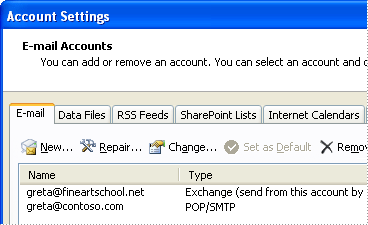
If the recall command isn't showing up at all, it usually means one of two things: you're not on a Microsoft 365 or Exchange account, or your organization's admin settings don't have recall enabled. You can check your account type under Account Settings, on the E-mail tab, in the Type column.
How To Recall a Sent Message in Outlook 2003 2016 2019
1. Go to the Sent Items folder. 2. Find the message you want recalled and double-click it.
3. Go to the Actions menu and select Recall This Message.
4. To recall the message:
Select Delete unread copies of this message.
(Note: the recipient needs to have Outlook opened for the message to be deleted)
To replace the message:
Select Delete unread copies and replace with a new message, click OK, and type your new message.
To be notified about the success of the recall or replacement:
Check the Tell me if recall succeeds or fails for each recipient check box.
5. Click OK.
How To Recall a Sent Message in Outlook 2007 2016 2019
1. Click on Sent Items.
2. Find the message you want recalled and double-click it to open.
3. Go to the Ribbon.
4. In the Actions section, click Other Actions and select Recall This Message.
5. Select Delete unread copies of this message.
6. To be notified about the success of the recall, check the Tell me if recall succeeds or fails for each recipient checkbox.
7. Click OK.
==========================================================================
Recall and replace a message in pictures
You send an e-mail message, asking your co-workers to review the sales figures for this year, but you forget to attach the sales figures. After you send the message, your Inbox is flooded with messages that ask "What attachment?", "I didn't get the attachment!", or "Can you resend the attachment?"How can you undo your error? You can recall the original message and then resend it with the missing attachment. For all of your co-workers who haven't opened the message yet, you can perform an e-mail sleight of hand and replace the original message with another one that contains the attachment.
Recall and replace a message step by step
Do the following:- In Mail, in the Navigation Pane (Navigation Pane: The column on the left side of the Outlook window that includes buttons for the Mail, Calendar, and Tasks views and the folders within each view. Click a folder to show the items in the folder.), click Sent Items.
- Open the message that you want to recall and replace.
- On the Message tab, in the Actions group, click Other Actions, and then click Recall This Message.

- On the Tools menu, click Account Settings.
- On the E-mail tab, the Type column lists the type of account for each entry.
- Click Delete unread copies and replace with a new message.
- Click OK, and then type a new message and include the attachment.
- Click Send.
Recall a message
Do the following:- In Mail, in the Navigation Pane (Navigation Pane: The column on the left side of the Outlook window that includes buttons for the Mail, Calendar, and Tasks views and the folders within each view. Click a folder to show the items in the folder.), click Sent Items.
- Open the message that you want to recall.
- On the Message tab, in the Actions group, click Other Actions, and then click Recall This Message.

- On the Tools menu, click Account Settings.
- On the E-mail tab, the Type column lists the type of account for each entry.
- Click Delete unread copies of this message.

 Select whether you want to only delete the message or delete and replace the message.
 Select the check box to receive a confirmation that the recall was successful.
Frequently Asked Questions
Can I recall an email sent to a Gmail or Yahoo address? No. Recall only works when both sender and recipient are on Microsoft 365 or Exchange Online within the same organization. For anything outside that, your only real safeguard is the Undo Send delay feature.
How long do I have to recall a message? As long as the recipient hasn't opened it, you can technically attempt a recall even hours later — but success drops the longer you wait, since there's more time for the recipient to open the email.
Will the recipient know I tried to recall a message? Sometimes. Depending on your organization's Microsoft 365 settings, the recipient may see a notification that a message was recalled, especially if they open the recall notice before the original. Some successful recalls happen silently.
What's the difference between Message Recall and Undo Send? Message Recall tries to pull back an email that has already reached the recipient's mailbox, and only works within Microsoft 365/Exchange organizations. Undo Send simply delays your outgoing email by a few seconds, giving you a short window to cancel it before it's sent at all — and it works for personal accounts too.
Does recall work on Outlook for Mac? Yes, as long as you're on a supported version (16.94 or later) and both accounts meet the standard Microsoft 365/Exchange requirements.
Is there a way to avoid needing recall in the first place? Turning on Delay Delivery or Undo Send gives you a short buffer to catch mistakes before an email actually leaves your outbox, which is far more reliable than recall after the fact.
Thank you for your message.